Switchboard: A Minimal macOS Wrapper for Web Apps
For a long time I used Ferdium as one of my main work apps to keep “things that need my attention” in one place. It was very helpful to have an app that would show badge notifications when I had something new to read, something new to respond to, or something needed my attention. I had Gmail, Slack, Calendar, Asana, GitHub and a few more setup there. Keeping this in a dedicated app separate from my browser tabs helped me focus. I still wanted a way to keep chat, email, and calendar web apps together in one window, separate from my browser tabs. Ferdium did the job but always felt heavier than what I really needed. I didn’t need or want the app to be tied to a server and I only used a very small number of its features. Also, occasionally the Ferdium server would go down and I couldn’t use it which was frustrating. All I really wanted was an app with a sidebar of web apps, unread badges, and notifications. So I built my own: Switchboard with the help of Claude Code (Opus) and a little bit of time in the afternoon.
Here’s what it looks like:
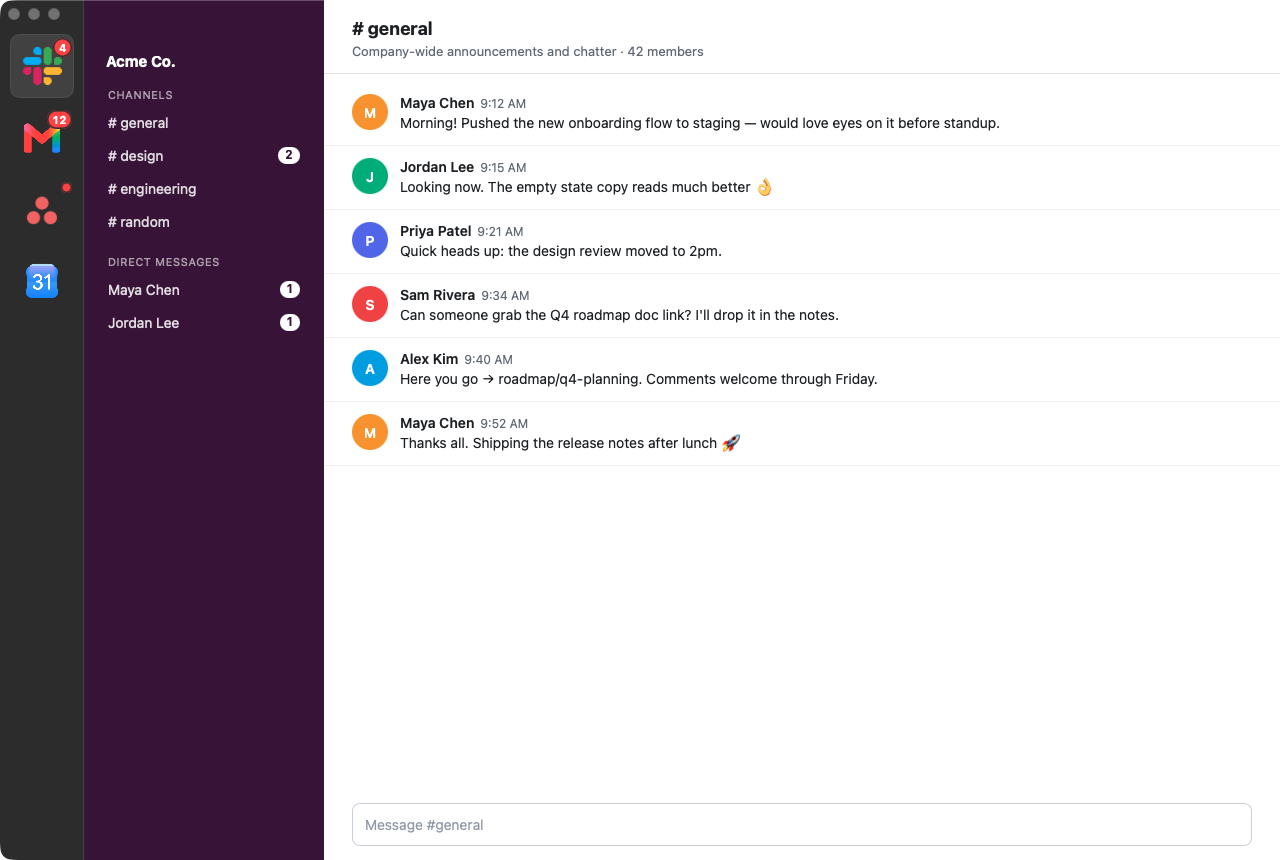
Switchboard is a small Swift app built on the system WebKit, which means it’s always as current as Safari and doesn’t bundle a browser engine. Yes, I built it fully with Opus and it’s pretty awesome that you can build tools for yourself like this with very minimal effort these days.
Overview
Unread badges
Each service in the sidebar gets a badge, and the Dock icon shows the total. Most web apps already put an unread count in the page title, like (4) Slack, so Switchboard reads that by default. It also supports the Badging API and shows a dot after a service sends a notification.
When a site doesn’t expose a count, the badge field takes a JavaScript expression that runs in the page every three seconds. A number shows a count badge and true shows a dot.
Native notifications
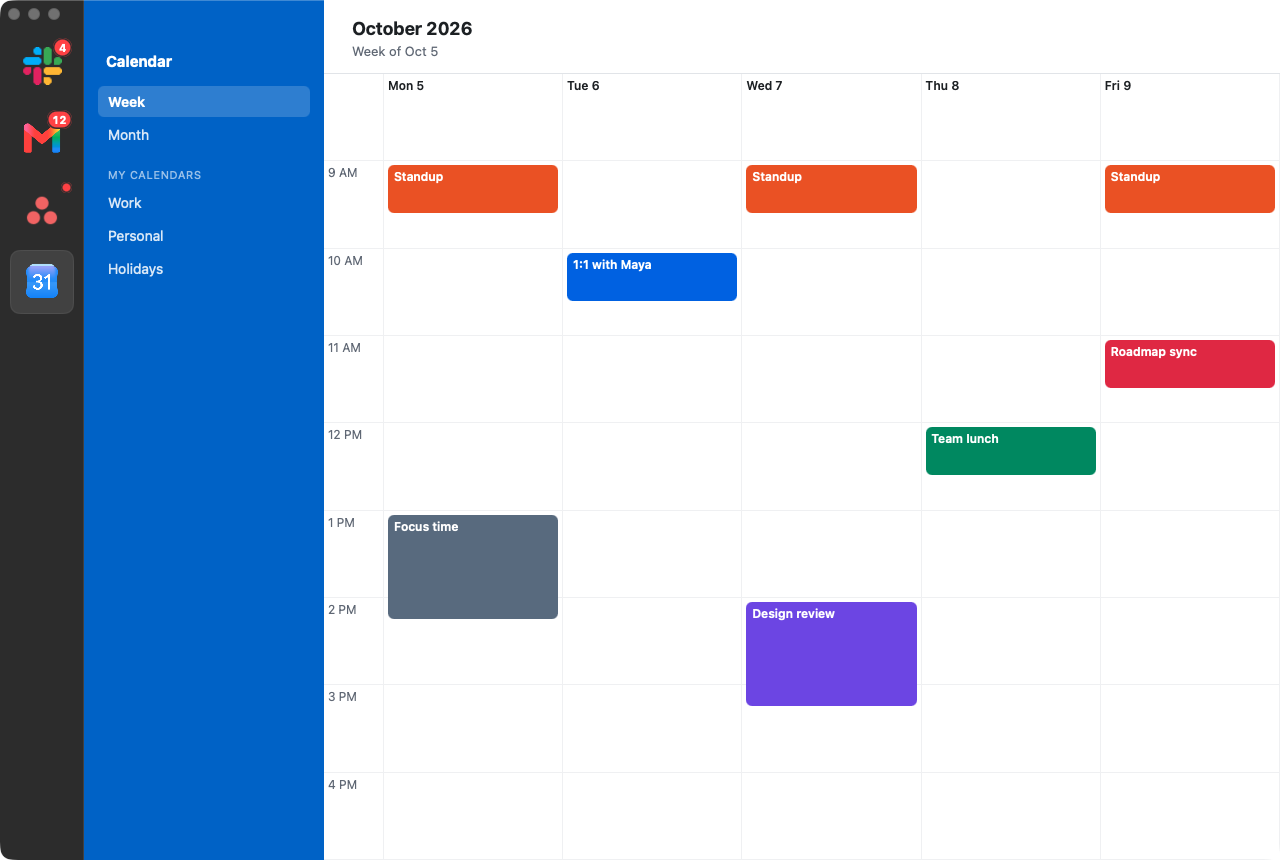
WKWebView doesn’t implement the web Notification API, so Switchboard injects a small script into every page that stands in for Notification and passes notifications to the app. They show up as regular macOS notifications, and clicking one brings up the right service and fires the page’s own onclick handler, just like it would in a browser.
One JSON file
There’s no settings screen. Services are defined in a single JSON file at ~/.config/switchboard/services.json, and pressing ⌘, opens it in your default editor.
[
  { "name": "Slack", "url": "https://app.slack.com/client", "userAgent": "chrome" },
  { "name": "Gmail", "url": "https://mail.google.com/mail/u/0/", "profile": "work" },
  { "name": "Asana", "url": "https://app.asana.com", "badge": "document.querySelectorAll('.unread').length" },
  { "name": "Calendar", "url": "https://calendar.google.com" }
]
Only name and url are required. Switchboard checks the file every couple of seconds, so changes show up without restarting the app. Icons are fetched from each site automatically (web app manifest, then apple-touch-icon, then favicon), or you can point icon at your own image.
Multiple accounts
The profile field gives a service its own cookie and login storage. Services that share a profile share logins, and services with different profiles are fully isolated. That makes it easy to run two accounts on the same site side by side, like a personal Gmail and a work Gmail.
Links go where you expect
A lot of the work in a wrapper like this is deciding what happens when you click a link:
- A link to another configured service switches to that service instead of opening a new window.
- Links to other sites open in your default browser.
- Sign-in popups for Google, Microsoft, Apple, Okta, and others stay in the app so logging in works.
Some sites need a nudge. Slack huddles, for example, work when Slack thinks it’s talking to Chrome, so setting "userAgent": "chrome" lets a service present itself as the installed version of Chrome.
Small stuff
Switchboard has the keyboard shortcuts you’d expect: ⌘1–9 to switch services, ⌘R to reload, ⌘[ and ⌘] for back and forward, ⌘F to find in the page, and zoom with ⌘= / ⌘-. Closing the window just hides it, so services keep running in the background and notifications keep coming. The Web Inspector is under View if you need to dig into a page.
Try it
Switchboard requires macOS 15 or later. Follow the Install instructions here to try it out. The source is on GitHub under the MIT license.